What is Bulk Product Actions?
Bulk Product Actions is a feature on Vendor Center that allows you to activate, deactivate, or delete multiple products at the same time — directly from the product list in your Vendor Center UI.
Instead of updating each product one by one, you can now select up to 100 products at once and apply the same action across all of them in a single step. For global sellers, changes apply automatically across every country where you operate.
Who Can Use This Feature?
This feature is available for all sellers on Vendor Center — both local and global sellers.
Note for global sellers: When you apply a bulk action, it will execute across all countries where your products are listed.
What Actions Are Supported?
| Action | What It Does |
| Activate | Makes selected products visible and available for purchase on the platform |
| Deactivate | Hides selected products from the platform without deleting them |
| Delete | Permanently removes selected products from your catalog |
⚠️ Important: The Delete action is permanent and cannot be undone. Make sure you have selected the correct products before confirming.
How to Use Bulk Product Actions
Step 1: Go to Your Product List
Log in to Vendor Center and navigate to Products in the left navigation menu.
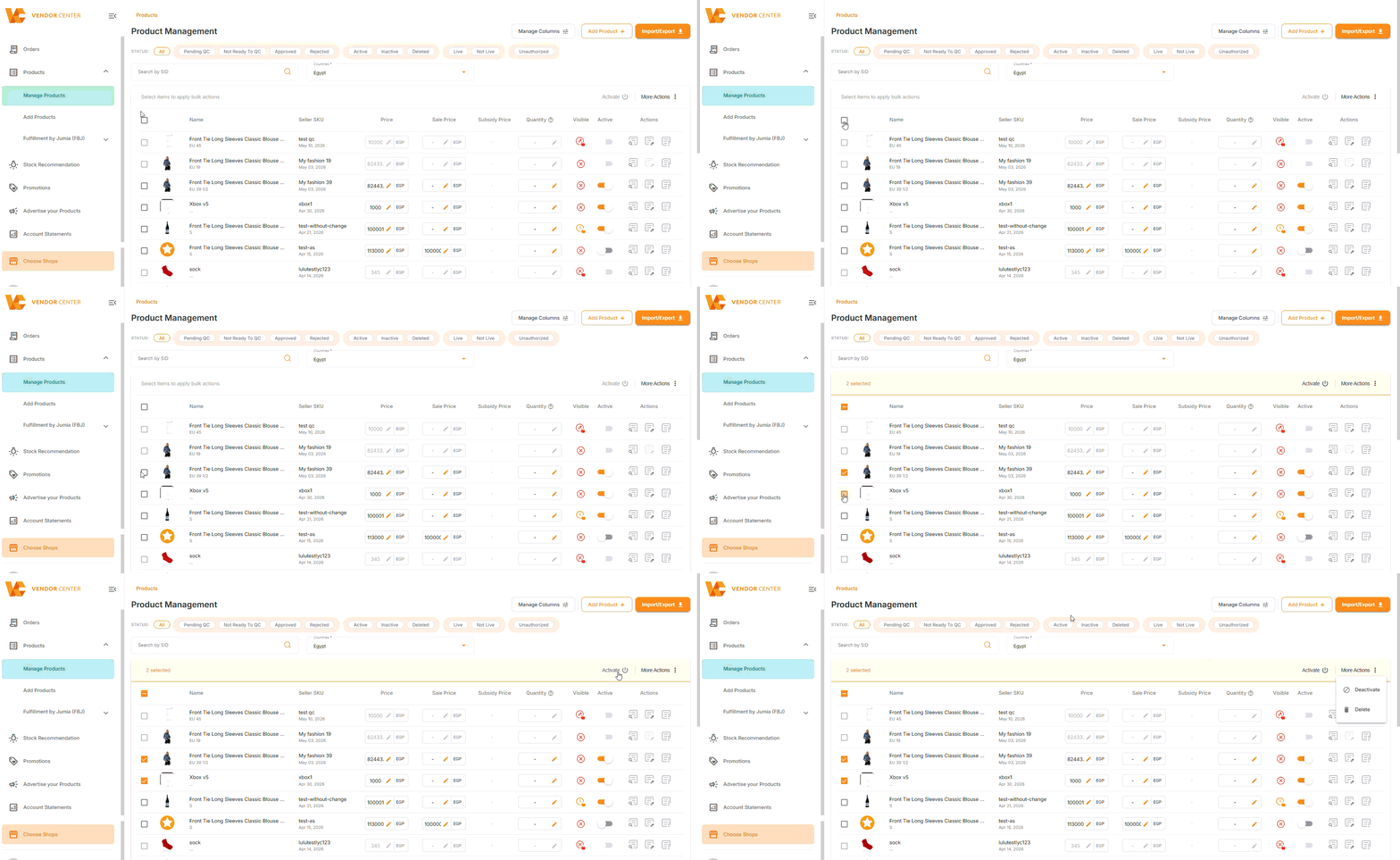
Step 2: Select Your Products
- Use the checkboxes on the left side of the product list to select the products you want to update
- You can select up to 100 products at once
- Use the search bar or filters to find specific products quickly
Step 3: Choose Your Action
- Once you have selected your products, the bulk action menu will appear at the top or bottom of the list
- Choose one of the available actions: Activate, Deactivate, or Delete
Step 4: Confirm
- A confirmation window will appear summarising the action and the number of products selected
- Review carefully, then click Confirm to apply the action
Step 5: Review the Results
Once the action is processed, you will receive a result summary showing:
| Result | What It Means |
| Successfully processed | Products that were updated without issues |
| Failed | Products that could not be updated — see the error details |
| Skipped | Products that were not applicable for this action |
Understanding Error Reports
If any products fail during a bulk action, Vendor Center provides a detailed error report to help you resolve issues quickly.
With the error report you can:
- Search within the error results to find specific products
- Filter by country to review issues per market
- Export the report as a file for offline review and follow-up
💡 Tip: Export the error report and resolve issues in one go rather than going back and forth on the platform
Frequently Asked Questions
Q: How many products can I update at once?
A: You can select and update up to 100 products in a single bulk action.
Q: Can I undo a bulk delete?
A: No. The Delete action is permanent. Always double-check your selection before confirming a bulk delete.
Q: Some of my products failed. What should I do?
A: Check the error report for details on why each product failed. You can search, filter by country, and export the report. Once you have identified the issue, you can resolve it and retry the action for the affected products.
Q: I need help. Who do I contact?
A: Reach out to us via the support form here.